A chance encounter
One photograph at a time, or a collection at a glance. Switch between the slideshow and randomized collage on Home.
Start from Home →One photograph. Another story.
There is no right way to begin. Follow a photograph, see it in another light, and discover the places that connect these moments.
Choose a step and try a different way of looking.
Choose a photograph to enter its album →
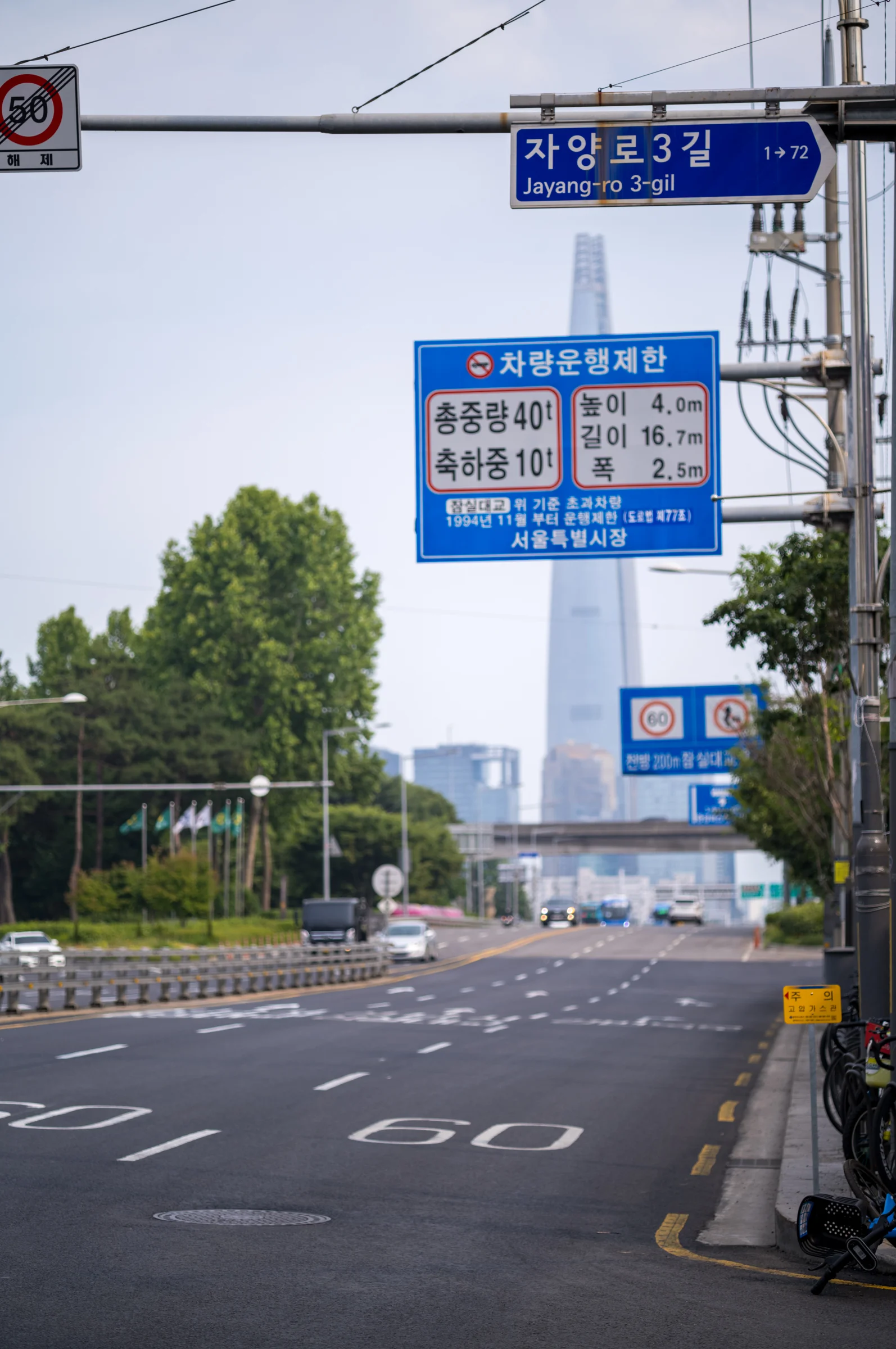
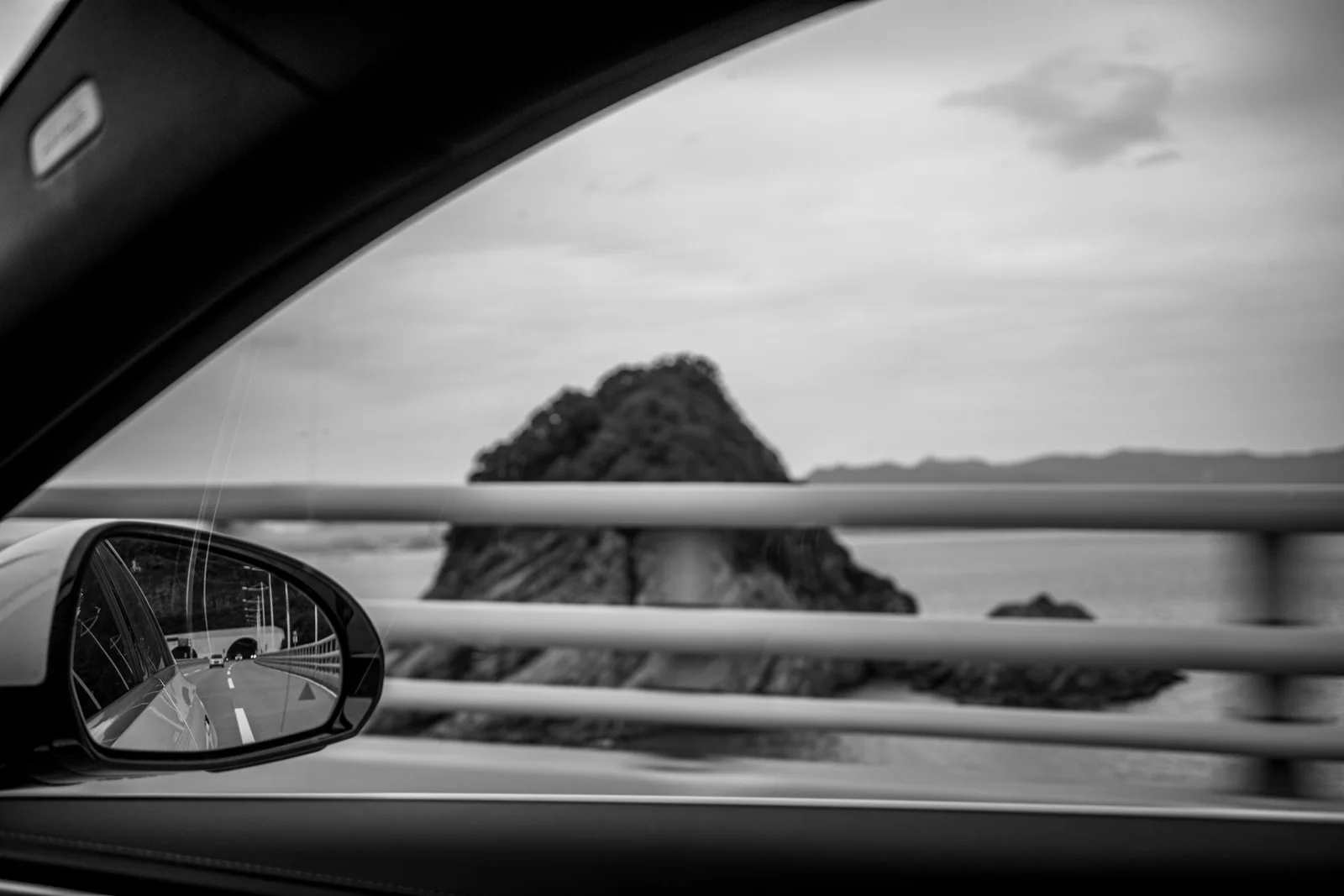
Jayang Dong Seoul 2024.06.05
Continue in the photograph’s album.
You are at the photograph’s location. Explore nearby markers for more photographs from the area.
Selected area
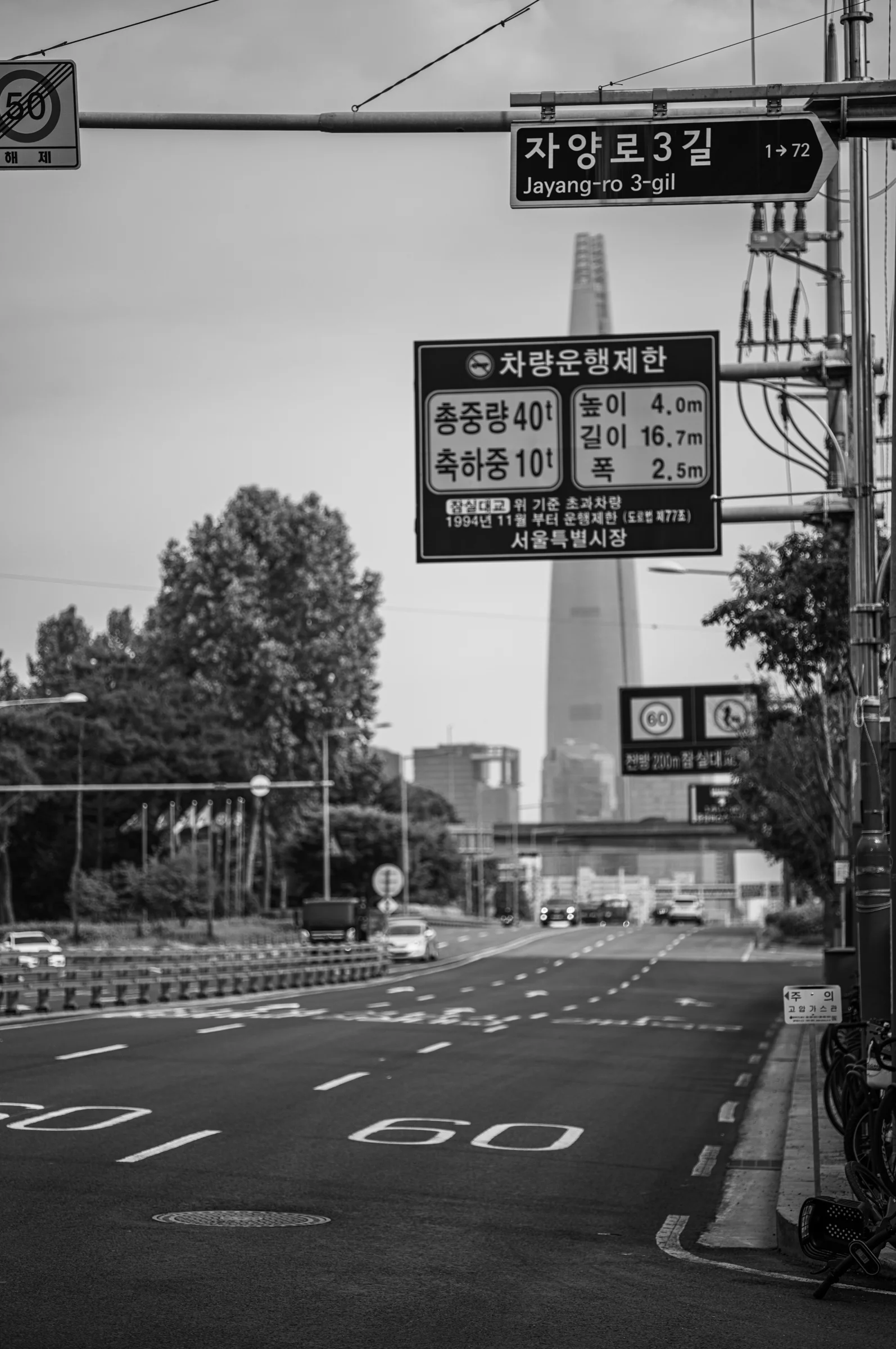
Jayang Dong Seoul 2024.06.05
From one photograph to another in the same area.Jayang Dong Seoul 2024.06.05 — B&W
Even in Full Screen, select a photograph to open its album.Enlarge a photograph in an album, then choose Slideshow.
Choose the order, time per photograph and Dissolve Time.
A close look at the transition: after the hold, dissolve to the next photograph over 1 second.
Full Screen keeps the playback order and remaining display time.
Press S to show the controls. On mobile, tap the center of the screen.
Press S again to hide the controls while the slideshow continues.
Start music with ▶ at the bottom left. Audio never starts automatically.
Select the title and performer to open tracks, volume, shuffle and repeat.
Music continues when you open an album in the same tab.
Music controls stay visible in enlarged view. Full Screen hides the controls while music continues.
Move over the bottom-left button area to reveal it. On touch devices, tap that area.
Move the pointer away to hide controls again. Music keeps playing.

Select a photo to view the album →
The default is a right-hand rail. Hover over an icon to read its name.
The slim top bar groups controls above the photographs.
In the collapsible layout, select Viewing menu at the top right to reveal the controls.
Select the same button again, click outside, or press Esc to close the menu.
Select ⓘ for album information. Select a photograph to open its album at that photograph.
Full Screen preserves the photographs and update state. Return with the inward-facing exit icon or Esc.
In Photo Slide, check an album or a parent folder.
A folder selects its descendant albums. Shared photographs play only once.
This example uses random order, a 5-second hold and a 1-second dissolve. Enter your own values on the real page.
Enlarge keeps the photograph and controls together. Playback and music continue.
Full Screen focuses on the photograph. On desktop, S shows and hides the slideshow controls.
From enlarged view, exiting Full Screen returns there. Closing the viewer then continues playback on the page.
A place you would like to revisit?
Begin with Search in the site menu.

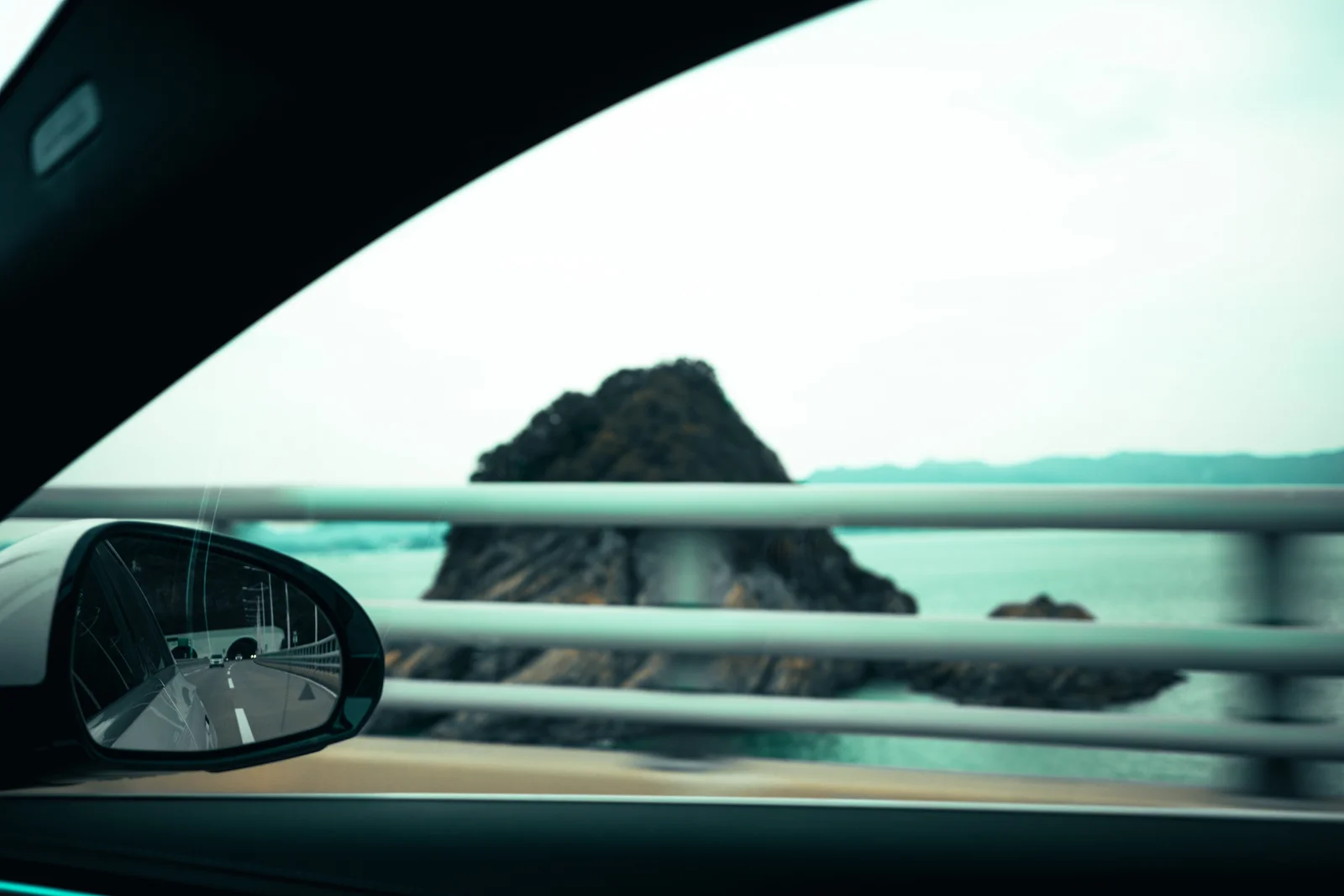


Enter Busan or 부산 to find photographs.
Search results open in Color first.
Paired photographs keep their order. Try #Sea beneath a photograph.
#Sea brings photographs from different albums together.
HOME / DISCOVER
Use ▻ or ▦ to choose Slide Show or Randomized Collage. Controls use the site’s top bar, collapsible menu or right rail layout. Use Previous and Next or pause the slideshow; Play continues from the current photograph. Select a photograph to enter its album, or open Photo Collage for a dedicated collage view.
Start from HomePHOTOBOOKS / ALBUMS
Scroll through an album or select a photograph for a larger view. Swipe left or right, use the arrow keys, or choose Previous and Next. On mobile, open the collapsed album tree to explore other years and albums.
Browse the albumsCOLOR / BLACK & WHITE
The album’s ⇄ Color/B&W button opens its linked album. Inside enlarged view, it switches the current photograph to its paired version without closing the viewer. Album shortcuts sit at the bottom right on desktop and in the bottom bar on mobile.
Open a paired albumPHOTO ATLAS / PLACES
Map appears only for photographs with location information. Follow the link below a photograph or Map in enlarged view. Area photographs pair Color on the left with B&W on the right; unpaired photographs fill the row. Shuffle keeps pairs together. Continue through the Photographs and Albums tabs.
The View shooting location link below a photograph opens the same location. Even within the same album, photographs without location information have no map button.
Continue in Photo AtlasFULL SCREEN / FOCUS
Open a photograph, then choose Full Screen or double-click or double-tap the image. Explore with swipes, the mouse wheel, arrow keys or the side edges. Double-click or double-tap again to return to enlarged view, keeping the photograph you were viewing.
Try it with a photographPHOTO COLLAGE / FULL SCREEN
Find Photo Collage next to Photobooks. Both the Home collage and this page offer Full Screen. Photographs keep their proportions and change with a gentle dissolve. Use Pause and Shuffle photos in the toolbar, then the exit icon or Esc on desktop to return. Select a photograph to open its album.
Open Photo CollageSEARCH / PHOTO TAGS
Search for a place, a subject or a camera. Try Busan, compare Color and B&W, then follow #Sea beneath a photograph to explore the same subject across albums.
Try SearchMore ways to use Search & tags ↓ALBUM / SLIDESHOW
Enlarge a photograph in an album and choose Slideshow. To combine albums, select albums or parent folders in Photo Slide. Set random order, display time and Dissolve Time. Enlarging or entering Full Screen keeps playback running.
Start in an albumMUSIC / LISTEN & EXPLORE
Start music with ▶ at the bottom left; select the title and performer to expand the playlist. Music continues across pages in the same tab and while viewing photographs. The player stays visible in enlarged view. In Full Screen, it hides until you move over its bottom-left area.
Explore the musicPHOTO VIEWING / CONTROLS
Home and Photo Collage offer three control layouts. The site displays the layout chosen by its owner. The demonstration compares layouts and menu interactions without changing the site settings.
Hover for button names, or use Tab followed by Enter or Space. The active viewing mode is highlighted. For album slideshow settings and the S shortcut in enlarged view, see the Slideshow tab.
Try the controls on HomePHOTO SLIDE / YOUR SELECTION
In Photo Slide, check the albums you want to watch. Selecting a parent folder includes its descendant albums. Choose the playback order, display time and Dissolve Time, then start the slideshow.
Open Photo SlideBegin wherever your curiosity takes you.
One photograph at a time, or a collection at a glance. Switch between the slideshow and randomized collage on Home.
Start from Home →Browse years and albums to find a collection. Select a photograph to enjoy a larger view.
Browse the albums →In paired albums, Color ↔ B&W takes you to the other version. Notice how light and feeling change.
Explore color and black & white →Choose a marker to see its photographs. Zoom with the wheel or a two-finger pinch to separate or group places. Paired photographs appear with Color on the left and B&W on the right; unpaired photographs fill the row. Shuffle changes the order while keeping pairs together.
Open Photo Atlas →Use View shooting location below a photograph or Map in enlarged view to discover its area. The floating shortcut is at the bottom right on desktop and in the bottom bar on mobile. View all locations at the top of an album shows its places together.
Explore an album with locations →Use the sun and moon to change the theme, and 한 / EN to choose a language. Your preferences stay with you on your next visit.
From enlarged view, choose Full Screen or double-click or double-tap. Repeat the gesture, or press Esc on desktop, to return. The brief instruction overlay fades away.
Find Map, Color/B&W, ?, and TOP along the bottom. Location and pairing determine which actions appear. Full Screen hides these menus so you can focus on the photograph.
Select a tag to see the same subject across albums. On desktop and mobile, Color and B&W tabs show separate photo counts. Pairs share the same shuffled order in both tabs, followed by results without a matching partner. The ⇄ shortcut beside ? and TOP switches tabs while keeping the viewed pair in place. Search and tag results open in Color, and a new search starts in Color again. If there are no color photos, an available tab opens instead. Previous and next stay within the selected edition, while paired-edition switching remains available. Photos without an edition appear under Unclassified. Sort the tag directory by its current-language names or photo counts in either direction.
Explore photo tags →The header’s magnifier finds words on this page and shows matching photo tags and a link to search the whole site. Search tags in Korean or English, with or without #. Site Search shows photographs in Color and B&W tabs, alongside related albums, tags, journals and writing. Click the magnifier again or press Esc to close it. Use the tree toggle to browse other albums.
Enlarged view keeps the music player visible. Full Screen hides it while music continues. Hover over its bottom-left area to reveal it and move away to hide it. On touch devices, tap there once to reveal it and tap outside to hide it. Keyboard users can use Tab. S toggles the photo slideshow controls.
Choose Random order under Tag order on Photo Tags to explore an unexpected topic. Name and photo-count sorting remain available. Select a tag to browse its photographs in Color and B&W.
Choose an album or parent folder in Photo Atlas. The map, place menu and photo panel include the selected photographs and their confirmed Color/B&W pairs. Other photographs from the paired album are excluded, and the added pair count is shown. Show all albums or clearing every checkbox restores the complete view; photographs without GPS are counted separately. Desktop defaults to a top selector with a side photo panel, and mobile to a folding selector on the map. Administrators can independently choose a left tree, top selector or folding map panel for desktop and mobile. The tree and folding selector support multiple albums, and mobile photographs appear below the map in Color and B&W tabs with counts. An available edition opens when Color is empty; enlarged-view navigation stays in the selected tab. Desktop keeps paired Color photographs on the left and B&W on the right. The mobile photo panel can collapse.
Verified place names identify photographs; coordinates help distinguish shooting locations with the same name. Locations without a verified name show coordinates. Choose a place to explore its photographs and albums in the photo panel.
With a 5-second hold and a 1-second dissolve, the photograph stays for 5 seconds, then blends into the next one over 1 second. The next hold begins after the transition finishes. Playback waits for photographs to load; a zero-second dissolve switches immediately after loading. Album enlarged view and Full Screen share the order and timing settings.
On desktop, press S to show the controls and S again to hide them. S also closes settings when you are not typing in a field. On mobile, tap the center once. Controls hide after about 3 seconds of inactivity, but stay while settings are open or a control has keyboard focus. Hiding controls keeps playback running. If opening settings paused playback, choose Resume to continue.
Auto updates, Pause, and Shuffle photos remain available. Use the exit icon or Esc on desktop to return with the same photographs and pause setting. Some devices may keep the browser’s address bar visible.
The slideshow starts randomly on a new visit, a refresh, or a switch from collage. Collages change according to the chosen photo count and interval. With reduced motion enabled, playback starts paused and you can resume it whenever you like.
The button appears only when location information is available. Photographs in one album may have different locations, and some may have none.
Its target changes as you scroll. Desktop shows a thumbnail; the mobile bottom bar omits it. To locate a specific photograph, use the link beneath it or Map inside its enlarged view.
The search and tag shortcut appears when both Color and B&W have results. The album shortcut needs a linked edition of the album. Inside enlarged view, the current photograph needs its own paired photograph, so availability can differ within the same album.
On desktop, use the wheel, left and right arrow keys, or the side edges. On mobile, swipe sideways or tap the edges. At fitted size, double-click or double-tap to return without changing the photograph. While zoomed, double-tap to fit the photo while staying in Full Screen, or use Exit full screen to leave. Some devices may keep the browser’s address bar visible.
Spread or pinch two fingers to zoom up to 5×. Drag with one finger to move around the enlarged photograph. Double-tap at any magnification above the fitted size to fit the photo again while staying in Full Screen. Dragging only pans the image. Choose Fit photo or pinch back to the fitted size to resume swiping between photographs. Zooming pauses the slideshow while music keeps playing. Changing photographs, leaving Full Screen or rotating the screen restores the fitted size.
Begin with a photograph that speaks to you.
Browse the albums